EPUB Import
PlainShelf can import EPUB files. EPUB is an import format, not a storage
format: the text is extracted and stored as an ordinary book, exactly like a
.txt or .md import. Nothing on the shelf becomes a binary blob, and every
imported book stays readable in a text editor.
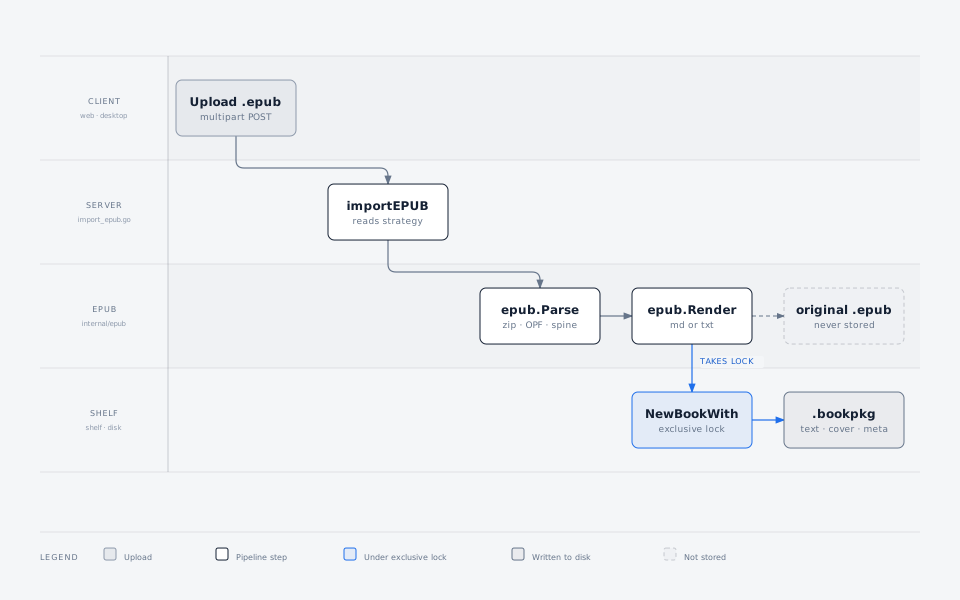
Parsing and rendering happen before the shelf lock is taken. The exclusive lock is held only for the write step, so converting a large EPUB does not block readers for the length of the conversion.
What is kept
| From the EPUB | Where it lands |
|---|---|
| Reading-order text | sources/{source-id}/source.txt |
| Table of contents chapter names | H2 chapter headings in the text |
dc:title |
Book title |
dc:creator |
Authors |
dc:language |
Language |
dc:description |
Book comments, and optionally the start of the text |
dc:identifier |
Identifiers, keyed by scheme (for example isbn) |
dc:date |
Published date |
| Cover image | cover.jpg / cover.png / … in the book directory |
| Embedded illustrations | sources/{source-id}/assets/, linked from the text where they appeared |
The book's own dc:title is preferred over the uploaded filename. If you type a
title in the import dialog, that wins.
Illustrations
Illustrations are stored beside the converted text as img-0001.png,
img-0002.jpg and so on, and the text links to each one where it appeared:
They are kept for the Markdown layout only. Plain text has no image syntax, so that layout drops them. An image used in several chapters is stored once.
Not every illustration can be kept. These are dropped, and counted:
- formats the shelf does not serve — anything that is not
.jpg,.jpeg,.png,.webp, or.gif, including SVG; - images drawn inside an
<svg>canvas, which has no position in flattened text; - an image over 8 MB, or artwork past 64 MB for the whole book.
To turn this off, set keep_images to false in the EPUB import strategy — in
the config file, or through POST /api/setting/epub_import_strategy. It is on
by default for the Markdown layout, and there is no control for it in the
import dialog yet.
What is dropped
- The original
.epubfile. It is not stored anywhere. Keep your own copy if you want one. - Illustrations the shelf cannot store, listed under Illustrations above. The import counts them and records the total on the imported source, so the loss stays visible after the fact — see What is recorded below.
- Ruby annotations (
<rt>/<rp>). The base text is kept; furigana is removed so it does not interleave into Japanese prose. - Links, footnotes, and page structure.
- Inline emphasis, when the output is plain text. The Markdown layout keeps bold and italic.
Because the original is not retained, re-importing is the only way to pick up improvements to the converter.
What is recorded
An EPUB whose illustrations could not all be stored gets a note on the source
the import created, in sources/{source-id}/meta.json:
The book detail view shows it as Import note. Books that lost nothing get no note at all, so the row only appears when there is something to report.
The note is not exclusive to imports and is never typed by hand — see Source notes for what else writes one and how to remove it.
Neither the cover nor a stored illustration is counted: both are kept rather than lost. Images referenced more than once count once, so the number reflects distinct artwork rather than the number of tags removed. Re-importing the same file rewrites the note.
Choosing the layout
The import dialog offers two layouts once an EPUB is selected. The choice decides both how the text is written and the format the book is stored as.
Markdown (default)
Stored as a source with format md, so the reader renders it as Markdown.
Every H2 is the chapter structure itself; no regex, line number, or separate
chapter file is generated. An EPUB chapter without a title gets a stable
## Part N heading.
Plain text
Stored as an unstructured source with format txt. Bare title lines remain in
the text, but the reader deliberately treats the whole source as one section:
there is no chapter navigation and Markdown illustrations are not kept.
If the chapter list matters to you, use the Markdown layout.
The layout decides the text itself, not just how it is read. After a plain-text import, use the source editor to create a chapterized Markdown source; the original TXT source stays intact.
Description in the text
The book description is always saved to the book's metadata. This option additionally writes it at the start of the text, before the first chapter.
Setting the default
Import options chosen in the dialog apply to that batch only. To change the default, open Settings → Import.
The default also governs imports that never open the dialog — notably the desktop app's file picker, which imports immediately.
The default can be seeded from the server config file:
A value saved from the settings page takes precedence over the config file.
Deleting the saved value reverts to the config file, and then to the built-in
default (markdown, description included).
Limits
- An import request is capped at 100 MB.
- A single document inside the archive is capped at 32 MB, and the whole book's extracted text at 256 MB.
- DRM-protected EPUB files are not supported and are not decrypted.